
Pankia Box Physical Click Keyboard Auto Clicker
3.2Editor score
Adjustable clicking arm with three parts
Wide compatibility with keyboards and mice
Requires Pankia box for operation
This guide compares the top automated keyboard clicker devices for gaming and productivity, evaluating speed, compatibility, and build quality.
Automated keyboard clickers are specialized tools designed to simulate human input without manual effort. They help keep systems active or automate repetitive tasks efficiently. Choosing the right device depends on your specific needs and usage scenarios.
We evaluated ten physical clicker models based on their programmability, speed settings, and build durability. Our comparison focuses on how well each device performs across different keyboards and mice without causing damage.
Each pick highlights unique strengths and trade-offs to help you decide. Note that availability and pricing may fluctuate over time so verify current details before purchasing any listed device today.
3.2Editor score

5.0Editor score

4.3Editor score
The following table offers a side-by-side comparison of all ten reviewed automated keyboard clicker devices highlighting their core specifications and primary functions.




This physical clicker stands out with its perfect rating for delivering hands-free automation. It eliminates the need for software installation by relying purely on hardware to simulate keystrokes or mouse clicks.
We may earn a commission when you buy through this link, at no additional cost to you.
The random click setup allows users to customize intervals to mimic human activity more closely. This feature enhances effectiveness across online platforms where consistent timing could raise suspicion. The sturdy motor ensures reliable performance without overheating during extended use.
While highly effective, the device requires careful placement on the keyboard or mouse to function correctly. It is limited to physical keys which means it cannot interact with touch screens directly without additional adapters.
Gamers and professionals needing automated input without software overhead will find this device ideal. Its reliability and ease of use make it a top recommendation for avoiding offline penalties or repetitive tasks.
Operating without software installation ensures consistent performance and avoids potential security risks from third-party applications.
Customizable random intervals prevent detection systems from flagging automated activity as non-human patterns.
We may earn a commission when you buy through this link, at no additional cost to you.
The Pankia Auto Keyboard Clicker offers fifteen different random click speeds to accommodate various needs. Its three ports allow independent speed adjustments making it versatile for different tasks.
We may earn a commission when you buy through this link, at no additional cost to you.
The physical clicking arm extends to adjust positions for most keyboards and mice. While the indicator light helps identify modes, switching requires manual button presses which may interrupt workflow.
Its lower rating suggests potential inconsistencies in build quality or performance over time. Users must ensure proper alignment to avoid missing clicks during extended sessions.
This model suits those needing multiple speed options without complex programming. It remains a practical choice for basic automation tasks where cost and variety matter.
Fifteen speed options provide flexibility for users needing different click rates across multiple applications.
Three ports allow separate configurations for different input devices simultaneously.
We may earn a commission when you buy through this link, at no additional cost to you.
This model stands out for its adjustable height and rubberized cover that prevents keyboard damage. It simulates manual clicking with fixed drops and random times for realistic results.
We may earn a commission when you buy through this link, at no additional cost to you.
The wide range time settings allow users to configure delays from 0.1 to 999 seconds. Host time setting without programming makes it accessible for users preferring simplicity.
The higher price reflects premium build quality but limits advanced programming features found in other models. Users may find customization less flexible compared to fully programmable alternatives.
Ideal for users prioritizing device safety and ease of use this clicker delivers reliable performance. Its design ensures keyboard protection while automating repetitive tasks effectively.
The rubberized cover minimizes friction and potential damage to keycaps during automated clicking sessions.
Direct host time settings eliminate the need for complex software configurations.
We may earn a commission when you buy through this link, at no additional cost to you.
This programmable device offers extensive customization including loop time click interval and random ranges. It supports timed operations and rest periods for precise control over automation cycles.
We may earn a commission when you buy through this link, at no additional cost to you.
Each of the three ports can be adjusted independently to meet diverse needs. However users must avoid exceeding five clicks per second to prevent heat-related damage to the arm.
The complexity of setup may be challenging for casual users but rewards those needing precision. The heat warning highlights the need for careful speed management during intensive tasks.
It suits advanced users requiring tailored automation profiles. The programmable features make it versatile for both gaming and repetitive desktop tasks.
Detailed programmable options allow users to define specific click patterns and durations.
Limiting click frequency prevents overheating and ensures long-term durability of the device.
We may earn a commission when you buy through this link, at no additional cost to you.
This clicker features a digital display that clearly shows click speed in numbers for easy monitoring. It runs on USB power from chargers or computers making it portable and convenient.
We may earn a commission when you buy through this link, at no additional cost to you.
The ABC logic allows sequential execution of click groups with arbitrary time combinations. Users can set click head distance and direction via buttons without external programming software.
The complexity of ABC group settings may confuse users seeking simple solutions. Reliance on USB power limits usage where access to power sources is restricted.
It serves users needing visual feedback and configurable timing without software. The display ensures transparency during operation for better control.
Digital display provides real-time speed information to verify settings during operation.
USB power compatibility allows use with mobile chargers or computer interfaces.
We may earn a commission when you buy through this link, at no additional cost to you.
This device offers adjustable speed per port to meet different needs simultaneously. The clicking arm features three adjusting parts for easier keyboard positioning.
We may earn a commission when you buy through this link, at no additional cost to you.
Users must note the heat damage warning if clicking exceeds five times per second. It requires the Pankia box to function which limits standalone usability.
Its moderate rating suggests average performance compared to competitors. The base dependency ensures stability but reduces portability for users needing mobility.
Suitable for desktop users needing basic automation without software. It balances simplicity and functionality for standard keyboard interactions.
Independent speed settings allow different tasks to run at optimal rates.
Compatibility with Pankia box ensures stable operation but requires additional hardware.
We may earn a commission when you buy through this link, at no additional cost to you.
This product includes only the clicking arm for use with Pankia box. It adjusts easily but cannot function without the base unit which must be purchased separately.
We may earn a commission when you buy through this link, at no additional cost to you.
It is suitable for keyboard or mouse clicks but requires a clicking head for phone screens. The adjustment parts help position the arm precisely for reliable clicks.
The limitation of requiring a separate box may confuse buyers expecting a standalone solution. Users should verify they have the base before purchasing this accessory.
Ideal for existing Pankia users needing replacement or extra arms. It provides flexibility for extending the system to multiple devices.
Designed to complement the base box for expanded automation coverage.
Requires additional clicking head for touch screen compatibility.
We may earn a commission when you buy through this link, at no additional cost to you.
The Pankia device offers simple button activation with light feedback for mode indication. Users can choose speeds easily though switching requires holding the button for specific durations.
We may earn a commission when you buy through this link, at no additional cost to you.
The fifteen random speeds provide variety but manual changes may interrupt workflow. Its physical design ensures no software conflicts or installation steps are needed.
Lower ratings indicate potential durability issues or usability limitations over time. Consistency may vary depending on the keyboard type and placement.
This model suits casual users needing straightforward automation. The simplicity and portability make it a practical tool for occasional use.
Basic button interface reduces setup time for users preferring minimal configuration.
Compact physical design allows for easy transport between different computer setups.
We may earn a commission when you buy through this link, at no additional cost to you.
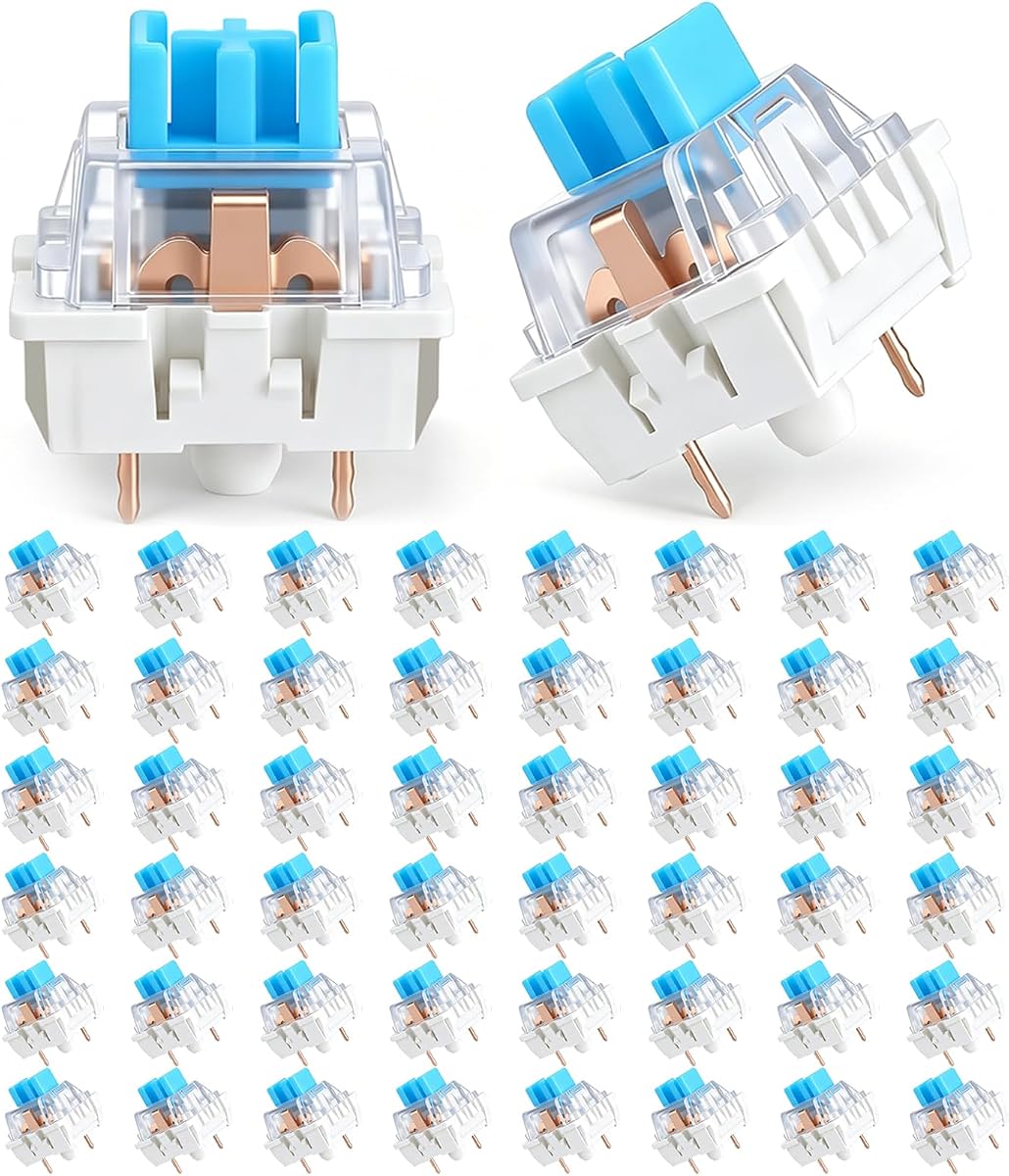
These mechanical switches offer crisp clicky feedback ideal for replacing worn keys or custom builds. The five pieces ensure compatibility with most mechanical keyboards and 3D printed projects.
We may earn a commission when you buy through this link, at no additional cost to you.
With a high rating users praise the durable waterproof housing and tactile feel. They serve as replacements rather than standalone automation tools which may confuse those seeking a clicker device.
The distinct sound and feel reduce stress but require keyboard installation skills. They do not automate typing but enhance physical input experience directly.
Best for keyboard enthusiasts building custom mechanical setups. The quality and tactile feedback make them a valued component for dedicated users.
Switches facilitate mechanical keyboard customization and replacement with high durability.
Distinct clicky feedback enhances typing satisfaction and stress relief.
We may earn a commission when you buy through this link, at no additional cost to you.
This 2-pack offers two sound profiles one silent and one clicky for different environments. The compact keychain design makes it easy to carry for stress relief at work or travel.
We may earn a commission when you buy through this link, at no additional cost to you.
Four mechanical keys provide familiar tactile feedback without requiring a full keyboard. Users should note it is a fidget toy not an automation tool for system tasks.
The portable design may limit durability compared to larger automation clickers. It is better suited for personal stress relief than task automation.
Ideal for individuals seeking stress relief and tactile feedback on the go. The dual profiles provide flexibility for shared and private spaces.
Compact size allows for easy transport in bags or pockets.
Silent and clicky options suit varied settings without disturbing others.
We may earn a commission when you buy through this link, at no additional cost to you.
Selecting the right automated keyboard clicker involves evaluating key factors like programmability, speed, and build durability to match your specific use case.
Some devices offer basic random intervals while others provide detailed programmable settings for loops and rest periods. Consider if you need simple automation or complex custom patterns.
Prioritize devices with sufficient control for your tasks without unnecessary complexity.
Different tasks require different click speeds. Look for models with adjustable speeds to ensure compatibility with various software and game requirements.
Ensure the device can handle your maximum needed click rate safely.
The physical construction of the clicker affects its lifespan. Sturdy motors and high-quality plastics ensure reliability during extended use.
Check reviews for long-term performance to avoid frequent replacements.
Verify that the clicker works with your keyboard type or mouse model. Some devices may require specific mounting or alignment for proper function.
Ensure the device fits your existing hardware setup comfortably.
Most clickers rely on USB power from computers or external adapters. Ensure you have consistent access to a power source for uninterrupted operation.
Check if battery-powered options are available if mobility is needed.
Some devices include warnings about excessive click speeds to prevent overheating. Choose models with built-in safeguards to protect both the clicker and your input devices.
Prioritize safety to avoid hardware damage during heavy use.
Quiet operation is essential for shared workspaces. Review sound specifications to ensure the device won't disturb others during automated tasks.
Look for rubberized covers or low-noise motors if noise is a concern.
Simple setup without software installation saves time and reduces technical barriers. Physical devices often require minimal configuration for immediate use.
Choose models with clear instructions or intuitive button interfaces.
Place the clicker on the desired key or mouse button ensuring it aligns properly with the input surface. Adjust the arm length if needed to reach comfortably.
Configure speed settings using the device controls according to your task requirements. Start with lower speeds to test stability before increasing frequency.
Regularly inspect the device for wear and clean any dust that may accumulate on moving parts. Store in a cool dry place to maintain motor health.
Rules vary by game and platform. Some games permit hardware clickers while others ban any automation. Check the terms of service for your specific game to ensure compliance.
Physical clickers generally work on mechanical keys but may require adapters for touch screens. Some models offer heads designed specifically for screen interaction.
Physical devices operate independently of the operating system so they work on macOS. Ensure the physical interface matches your keyboard layout for accurate input.
Avoid setting click speeds above recommended limits such as five times per second. Use rest periods to allow the motor to cool between active sessions.
Physical devices avoid installation risks associated with software tools. They operate externally reducing potential malware exposure on your system.
Many models are compatible with mice as well as keyboards. Ensure the clicking arm can position correctly over the mouse button for reliable clicks.
The top picks offer distinct advantages whether you prioritize customization, budget, or device protection. Review the detailed comparisons to align features with your workflow.
Prioritize durability and speed settings that match your daily usage requirements. Safety features like thermal protection ensure long-term reliability.
Verify current availability and pricing as market conditions change. Select the device that best fits your needs for efficient automated input.