
BenQ MA270UP 27” 4K Monitor for MacBook® Pro/Air
4.3Editor score
Mac Color Match technology included
90W Power Delivery via USB-C
Integrated macOS brightness controls
Finding the right display for your laptop can transform your workflow significantly. You need a screen that matches the resolution and color accuracy of your device without cluttering your desk with too many cables or adapters.
We have evaluated a wide range of options based on connectivity, color performance, and ergonomic design. Our comparison focuses on how well each monitor integrates with macOS features like universal control and color profiles to ensure a smooth experience.
Each pick highlights specific strengths for different user needs from budget-friendly options to premium professional displays. Please note that pricing and availability change frequently so always check the current listings before making your final purchase decision today.
4.3Editor score
5.0Editor score

4.6Editor score
As an Amazon Associate we earn from qualifying purchases.
This side-by-side comparison highlights the key specifications of every model we reviewed to help you quickly identify which screen fits your workspace requirements and budget constraints.



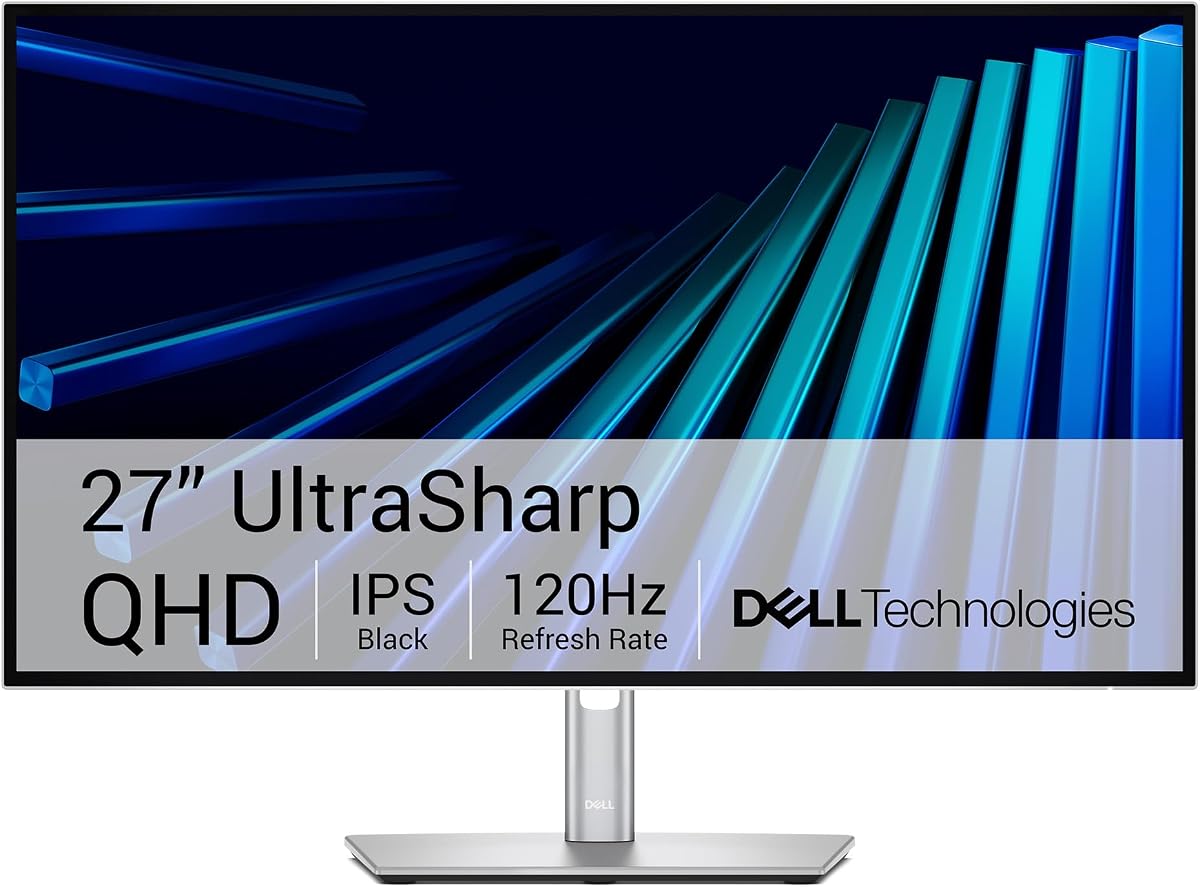
The Dell UltraSharp 27 Thunderbolt Hub Monitor stands out as the premier choice for MacBook users who demand professional quality and seamless integration. With a perfect rating from reviewers it delivers on its promise of showing work exactly as intended through its factory-calibrated color accuracy.
We may earn a commission when you buy through this link, at no additional cost to you.
Its standout feature is the Thunderbolt connectivity which allows for a single cable solution for video data and power delivery. The 98% Display P3 coverage ensures that colors on your external display match your MacBook Pro screen closely making it ideal for creative professionals. The built-in KVM switch lets you control two machines with one keyboard and mouse significantly boosting productivity.
While the price is higher than standard monitors the value provided by the hub functionality and color performance justifies the investment for serious users. The 120Hz refresh rate also adds smoothness to scrolling and motion which is often overlooked in professional displays.
This monitor is best suited for designers developers and executives who need a reliable high-performance companion for their Mac. If you want a display that truly extends your laptop workflow without compromise this is the top recommendation.
The factory calibration ensures that the P3 color gamut is accurate right out of the box saving you time on software adjustments.
Thunderbolt support means you can connect to the monitor and transfer high-speed data while powering your device through one cable.
We may earn a commission when you buy through this link, at no additional cost to you.
The BenQ MA270UP is designed specifically with Apple users in mind offering features that make it feel like a native extension of the macOS ecosystem. It has a strong rating from users who appreciate its specialized tuning for MacBook Pro and Air devices.
We may earn a commission when you buy through this link, at no additional cost to you.
The Mac Color Match feature allows you to calibrate the monitor to match your laptop screen ensuring consistent visuals across devices. The dual USB-C ports provide flexibility where one delivers 90W to power your laptop while the other can charge accessories like an iPad or iPhone. The ability to control brightness and volume directly from your Mac keyboard is a unique and appreciated convenience.
While it comes at a premium price the integration of these specific Mac-focused features makes it a strong contender for those who prioritize workflow consistency. The build quality and stand adjustability also support long hours of comfortable use.
This monitor is ideal for creative professionals and students who want a display that understands the nuances of the Apple display environment. If you value color consistency and convenient hardware controls this premium option is worth considering.
The calibration ensures that what you see on your laptop matches exactly what you see on the external screen without complex settings.
You can adjust volume and brightness directly using your Mac keyboard keys making the experience feel seamless and intuitive.
We may earn a commission when you buy through this link, at no additional cost to you.
The Philips 24 Inch Computer Monitor offers a solid entry point for those looking to add a second screen without breaking the bank. It holds a high rating due to its reliable performance and eye comfort features that benefit daily users.
We may earn a commission when you buy through this link, at no additional cost to you.
Its VA panel delivers deep blacks and high contrast which makes it a great choice for media consumption or low-light environments. The 100Hz refresh rate provides smoother visuals compared to standard 60Hz monitors enhancing the general fluidity of your workflow. The three-sided borderless design allows for seamless multi-monitor setups if you plan to expand later.
While it lacks the high resolution of 4K displays it is perfect for general productivity and document work. The only real limitation is the absence of USB-C which means you may need a dongle to connect to newer MacBooks.
This monitor is best for students or budget-conscious users who need a reliable extra screen for writing browsing and general tasks. If you prioritize value and comfort over high-resolution graphics this is a strong choice.
The EasyRead mode adjusts the display to reduce eye strain during long periods of document review or reading.
The wide viewing angle ensures colors remain consistent even when you view the screen from the side or off center.
We may earn a commission when you buy through this link, at no additional cost to you.
The Dell 27 Monitor S2725QC is a versatile display that combines high resolution with a smooth refresh rate making it suitable for both work and leisure. Users appreciate its sharp 4K screen and the comfort features that support extended usage.
We may earn a commission when you buy through this link, at no additional cost to you.
The 120Hz refresh rate is a significant upgrade over standard monitors allowing for smoother scrolling and reduced motion blur. The USB-C port supports up to 65W power delivery which can charge many MacBook models while handling video output. The ComfortView Plus technology reduces blue light emissions without washing out colors keeping your eyes comfortable throughout the day.
While it does not support the highest power delivery for faster charging it is sufficient for most laptop needs. The audio quality is also better than average for a flat panel reducing the need for external speakers in simple setups.
This monitor is ideal for users who want a balance between productivity and entertainment features without paying a premium price. If you enjoy watching content or need smooth visuals for detailed work this is a solid middle-ground option.
The 120Hz refresh rate ensures that motion looks fluid whether you are scrolling through documents or watching videos.
The reduced blue light emission helps prevent eye fatigue during long work sessions without compromising image quality.
We may earn a commission when you buy through this link, at no additional cost to you.
The LG 27UP850K-W delivers a rich viewing experience with its 4K resolution and wide color gamut making it a strong choice for media consumption and creative tasks. Its high rating reflects the satisfaction of users with its color depth and connectivity options.
We may earn a commission when you buy through this link, at no additional cost to you.
The HDR 400 certification allows for better dynamic range in supported content enhancing the visual experience. The 95% DCI-P3 color gamut provides vibrant and accurate colors which are essential for video editing and graphic design. The 90W USB-C delivery ensures your laptop stays charged while connected reducing cable clutter.
The built-in speakers are surprisingly good thanks to the MaxxAudio technology offering a complete solution for multimedia use. The OnScreen Switch app adds value by allowing easy window management and device switching which streamlines multitasking on a single screen.
This monitor is perfect for users who need reliable color accuracy and strong connectivity without stepping up to Thunderbolt prices. If you want a display that handles both work and entertainment well this model offers excellent value.
The DCI-P3 gamut ensures that colors look vibrant and true to life which is critical for creative professionals.
The Switch app lets you customize your screen layout and launch apps easily making multitasking more efficient.
We may earn a commission when you buy through this link, at no additional cost to you.
The Dell 24 Plus Monitor brings a high refresh rate to the productivity category ensuring that every movement on your screen feels fluid. It has received excellent ratings from users who value responsiveness and eye comfort in their daily work.
We may earn a commission when you buy through this link, at no additional cost to you.
The 144Hz refresh rate is typically found in gaming monitors but here it provides incredibly smooth scrolling and window movement which reduces strain during heavy multitasking. The TÜV certification for eye comfort means that blue light is reduced without distorting colors. The built-in speakers add convenience for quick audio needs without extra hardware.
While the resolution is standard HD the fast response time makes it a great secondary screen for reference data or email. The stand offers full adjustability which is often missing in budget models ensuring you can find a comfortable viewing angle.
This monitor is best for users who prioritize speed and comfort over high pixel density. If you want a responsive screen for coding or writing that supports your ergonomics this is a reliable choice.
The 144Hz rate ensures that dragging windows or scrolling pages is seamless and free from lag.
The stand allows for height tilt pivot and swivel adjustments to support your posture during work.
We may earn a commission when you buy through this link, at no additional cost to you.
The BenQ PD2706QN is a robust option for professionals seeking accurate colors and reliable connectivity. It holds a strong rating due to its consistent performance and features tailored for Mac users.
We may earn a commission when you buy through this link, at no additional cost to you.
The factory calibration ensures that colors meet industry standards out of the box which is vital for designers and video editors. The Nano Matte panel diffuses ambient light reducing glare and preserving contrast which helps in bright environments. The 90W USB-C allows you to power your laptop and manage data transfer with one cable.
While the resolution is QHD rather than 4K it offers a great balance of sharpness and performance. The ability to daisy chain monitors simplifies cable management if you plan to expand your workspace later.
This monitor is ideal for design professionals who need precise color and anti-glare protection. If you want a screen that minimizes distractions and maximizes color accuracy this is a highly recommended choice.
The factory calibration ensures that the colors you see are accurate for your work reducing the need for extra tools.
The Nano Matte finish helps prevent reflections which keeps your image clear in well lit rooms.
We may earn a commission when you buy through this link, at no additional cost to you.
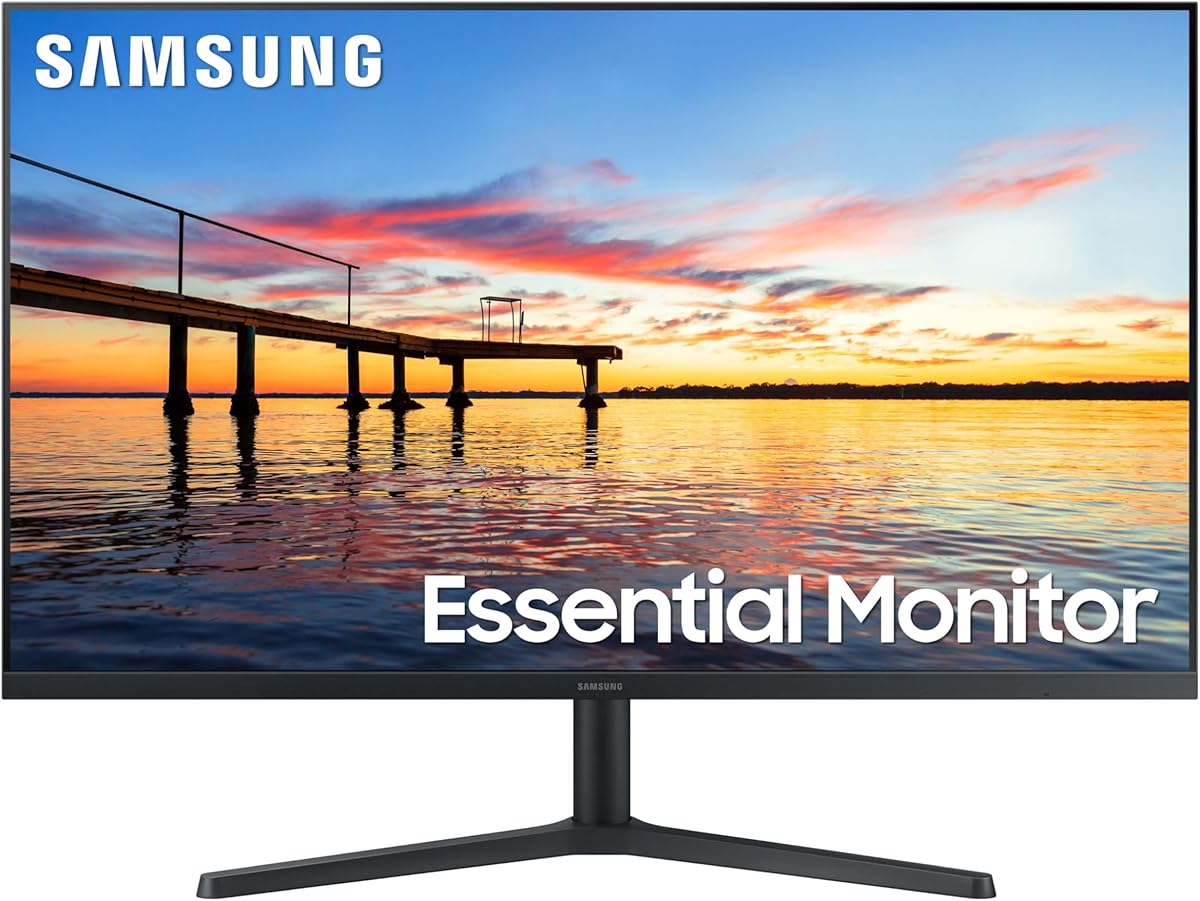
The Samsung 32" Flat Computer Monitor offers a large viewing area that is perfect for multitasking and immersive work. It has gained positive ratings for its size and comfortable design features.
We may earn a commission when you buy through this link, at no additional cost to you.
The 32 inch display provides ample space to view multiple documents side by side which increases productivity. The borderless design gives it a modern look and allows it to blend into multi-monitor setups seamlessly. The eye care technology helps reduce strain during long sessions which is important for daily users.
While the resolution is standard HD the large size makes text and images easy to read from a distance. It is a practical choice for those who need a wide canvas for spreadsheets or planning without the cost of higher resolution displays.
This monitor is best for users who prioritize screen real estate over pixel sharpness. If you want a big screen for general use and entertainment at an affordable price this is a solid option.
The 32 inch size gives you plenty of room to work on multiple tasks without switching windows constantly.
The borderless edges create a clean look that looks great on any desk and supports dual setups.
We may earn a commission when you buy through this link, at no additional cost to you.
The LG 27US500-W provides a clean and modern 4K experience that fits well in minimalist setups. It is well rated for its image quality and easy-to-use control features.
We may earn a commission when you buy through this link, at no additional cost to you.
The 4K resolution ensures text is crisp and images are detailed which is great for general productivity and media. The borderless design and white finish give it a sleek look that complements white devices. The flicker safe technology helps reduce eye fatigue during extended viewing.
While it does not have USB-C charging built-in the HDMI and DisplayPort inputs are standard for connecting to various devices. The onscreen control tool allows you to split the screen and customize settings easily.
This monitor is ideal for users who want a stylish 4K display without complex connectivity needs. If you need sharp visuals and a modern look this is a great choice for home offices.
The 4K resolution makes text and small graphics sharp and clear for detailed work.
The onscreen control lets you divide the display to view multiple apps at once efficiently.
We may earn a commission when you buy through this link, at no additional cost to you.
The LG 27U631A-B offers a balanced package with QHD resolution and a 100Hz refresh rate making it a strong contender for general use. Users appreciate its versatility and eye comfort features.
We may earn a commission when you buy through this link, at no additional cost to you.
The QHD resolution provides enough detail for professional work while keeping system load lower than 4K. The 100Hz refresh rate ensures smooth scrolling and motion which improves the overall feel of the interface. The USB-C port with 15W power delivery can charge phones or tablets while connected.
The reader mode adjusts the screen to mimic paper reducing eye strain during reading sessions. While the power delivery is not enough for charging a laptop fully it is useful for peripherals.
This monitor is best for users who need a reliable mid-range display with good motion handling. If you want a screen that handles both work and light gaming well this is a practical choice.
The 100Hz refresh rate reduces motion blur making everything from scrolling to videos look fluid.
The reader mode helps reduce blue light and strain making it easier to read documents for long periods.
We may earn a commission when you buy through this link, at no additional cost to you.
Choosing the right monitor for your MacBook involves balancing connectivity resolution and color accuracy. This guide breaks down the key factors to ensure you find a display that matches your workflow.
MacBooks often rely on USB-C or Thunderbolt for video output so ensuring your monitor supports these protocols is crucial. A monitor with USB-C power delivery can charge your laptop while displaying video which reduces cable clutter significantly.
Look for monitors that support high power delivery such as 65W or 90W to fully charge your MacBook. If you need to connect multiple devices consider models with multiple USB-C ports or Thunderbolt hubs for maximum flexibility.
Since MacBooks often come with Retina displays a 4K resolution ensures that text and icons look sharp and consistent on an external screen. Lower resolutions like FHD may work but can result in scaling issues or less crisp details.
For general productivity a QHD resolution offers a good balance of space and clarity. If you work with detailed graphics or video choose 4K to get the best visual fidelity for your creative projects.
For creative work it is essential to have a monitor that covers a wide color gamut such as DCI-P3 or sRGB. Factory calibrated monitors save you the time of adjusting color settings manually.
Look for specifications that mention sRGB or P3 coverage to ensure colors are accurate. This is especially important for designers and photographers who need to trust what they see on screen.
A higher refresh rate such as 100Hz or 120Hz makes scrolling and motion look smoother which reduces eye strain during long sessions. Response time affects how quickly pixels change color and lower values reduce motion blur.
While 60Hz is standard a higher refresh rate adds to the fluidity of the interface. If you use your monitor for casual gaming or want the smoothest experience prioritize a rate above 60Hz.
Adjustable stands that allow for height tilt and pivot adjustments are important for maintaining a comfortable posture. This helps prevent neck and back pain during long work hours.
Choose a monitor with a stand that lets you adjust the height to eye level. A VESA mount option is also useful if you prefer to use a third-party monitor arm for more flexibility.
The size of the monitor should fit your desk and viewing distance. 24 to 27 inches is common for home offices while 32 inches offers more workspace.
Measure your desk area before buying to ensure the monitor fits without crowding your setup. Larger screens are great for multitasking but require more room to position comfortably.
Features like built-in speakers or eye care technologies such as blue light filters add value to your experience. Some monitors also offer software tools for easier window management.
Check if the monitor includes useful extras like a built-in webcam or KVM switch. These features can simplify your setup and enhance productivity without needing extra hardware.
Monitors range widely in price so determine how much you need based on your specific use case. Higher-end models offer better color and connectivity but mid-range options often suffice for general use.
Balance your budget with your needs to find a monitor that offers the best value. Invest more in color accuracy if you do creative work but focus on comfort for general office tasks.
Connect your monitor to your MacBook using a compatible USB-C or HDMI cable to ensure stable video output. If using USB-C check that the cable supports both video and power to simplify your setup.
Adjust the settings in System Preferences to match the monitor's native resolution and refresh rate for the best image quality. Enable the Night Shift feature or use monitor software to manage blue light during evening work.
Clean the screen regularly with a soft microfiber cloth and avoid harsh chemicals to protect the coating. Keep the monitor away from direct sunlight to prevent overheating and fading over time.
Yes you can use a regular HDMI monitor with a USB-C to HDMI adapter. While this works for video it will not charge your laptop so you need to keep the power cable connected separately.
If the monitor supports USB-C power delivery with sufficient wattage it can charge your MacBook while displaying video. Check the spec to ensure it provides at least 60W for most MacBook models.
A 4K resolution is best for matching the sharpness of a MacBook Pro Retina display. It ensures text is crisp and icons look correct without scaling issues.
Mac-specific monitors often include color calibration and connectivity features that simplify setup. They are worth the cost if you need precise color accuracy or frequent device switching.
Check that your Mac is set to use the monitor's native resolution. Adjust the scaling settings in System Preferences to ensure the text size matches your preference.
Yes if both monitors support DisplayPort MST and your MacBook has a Thunderbolt port. This allows you to connect multiple screens in a chain with fewer cables.
No Thunder a Thunderbolt monitor offers the fastest data transfer USB-C monitors with 4K support work well for most users. It depends on whether you need high-speed external storage.
A 120Hz refresh rate makes scrolling and motion smoother than standard 60Hz. It reduces eye strain and creates a more fluid experience during daily work.
We have reviewed ten top monitors ranging from premium Thunderbolt hubs to budget-friendly 4K panels. Each option offers unique strengths for different workflows whether you are a designer or a general user.
Prioritize connectivity and color accuracy based on your main use case. If you need seamless integration and high speed look for models with USB-C and wide color gamuts.
Remember to check current pricing and availability before buying as stock levels change frequently. Choose the monitor that best fits your budget and desk space for the best long-term experience.