
BENFEI USB C to HDMI Adapter
4.4Editor score
4K support at 60Hz
Compact and lightweight design
Wide device compatibility
This guide compares the top Flash Drive to HDMI Adapter options for extending displays on laptops and desktops with reliable performance and broad compatibility
Connecting your computer to a larger display has never been more important for productivity and entertainment. A Flash Drive to HDMI Adapter offers a simple solution for laptops lacking video ports, enabling high definition output with minimal setup.
We evaluated ten leading adapters based on resolution support, compatibility across operating systems, build quality, and user feedback. Each product was assessed for ease of installation, signal stability, and overall value to help you find the right fit.
Every pick in this list highlights key strengths and potential limitations so you can make an informed decision. Note that availability and pricing may change over time, so verify details before purchasing your chosen adapter.
4.4Editor score

4.1Editor score

4.5Editor score
The following table provides a side by side comparison of all ten adapters reviewed in this guide. Each entry lists core specifications and key capabilities to help you quickly identify the best match for your setup.




The Reborn USB to HDMI Adapter delivers solid performance for users seeking a reliable way to connect laptops without HDMI ports to external displays. With a rating of 4.1 stars, it is praised for its simplicity and ability to output 1080P at 60Hz for smooth visuals.
We may earn a commission when you buy through this link, at no additional cost to you.
Its standout quality lies in its wide compatibility with both Windows and macOS systems, making it suitable for mixed environments. The compact design ensures it is easy to carry in a laptop bag, and the driver installation process is straightforward without requiring a CD-ROM.
However, the need to install drivers before initial use can be a minor hurdle for some users. Additionally, it cannot function in BIOS mode, which may limit its utility for system-level diagnostics or recovery tasks.
This adapter is ideal for professionals and students who need an affordable and portable solution for presentations or extended desktop setups. If you value ease of transport and cross-platform support, the Reborn adapter is a strong choice.
Supports both Windows and macOS, making it versatile for mixed IT environments.
Its small form factor ensures it fits easily in bags for on-the-go presentations.
We may earn a commission when you buy through this link, at no additional cost to you.
The StarTech USB-A 3.0 to HDMI Converter is a robust solution for Windows users looking to extend their desktop to an external monitor. With a 4.5 rating, it is known for stable performance and ease of setup in office environments.
We may earn a commission when you buy through this link, at no additional cost to you.
Its design is travel-friendly and USB bus powered, eliminating the need for extra power adapters. This makes it convenient for professionals who frequently move between workstations or travel for meetings.
However, it is limited to Windows systems and does not support macOS, ChromeOS, or Linux. Administrator rights are also required for driver installation, which might be restrictive in managed IT environments.
This converter is best suited for Windows-centric workstations where reliability and simplicity are priorities. If you need a no-fuss solution for extending displays on Windows laptops, it is a dependable choice.
Specifically designed for Windows platforms, ensuring stable driver support.
Lightweight and compact form factor makes it easy to carry.
We may earn a commission when you buy through this link, at no additional cost to you.
This USB to HDMI Adapter offers a budget-friendly option for connecting laptops to external monitors or TVs. It supports 1080P resolution and is compatible with both Windows and macOS, making it accessible to a wide range of users.
We may earn a commission when you buy through this link, at no additional cost to you.
Its ability to work with both USB 3.0 and 2.0 ports provides flexibility for older and newer devices. Hot plug support ensures you can connect or disconnect the adapter without restarting your computer.
However, user reviews indicate a lower overall rating, suggesting potential inconsistencies in performance. Driver installation is also necessary, which can be a barrier for non-technical users.
If you need an economical solution for extending displays and are comfortable with basic setup steps, this adapter is worth considering. It is best for casual use rather than professional environments.
Offers a cost-effective way to add HDMI connectivity to laptops.
Allows connection changes without restarting your system.
We may earn a commission when you buy through this link, at no additional cost to you.
The WAVLINK USB 3.0/USB C to HDMI adapter is designed for users who need to connect multiple external displays to their computers. With a 4.4 rating, it is praised for its ability to support up to 6 monitors on PCs, significantly expanding workspace capabilities.
We may earn a commission when you buy through this link, at no additional cost to you.
It is compatible with both Windows and macOS systems, including newer M-series Macs. The inclusion of USB C and USB A inputs provides flexibility for various devices, making it suitable for diverse setups.
However, it requires DisplayLink driver installation, which can add complexity to the setup process. The price is also higher than simpler adapters, reflecting its advanced multi-monitor capabilities.
This adapter is ideal for power users and professionals who need extensive screen real estate for productivity. If multi-monitor support is a priority, the WAVLINK adapter is a strong investment.
Supports up to 6 monitors for maximum productivity and multitasking.
USB C and USB A inputs make it compatible with a wide range of devices.
We may earn a commission when you buy through this link, at no additional cost to you.
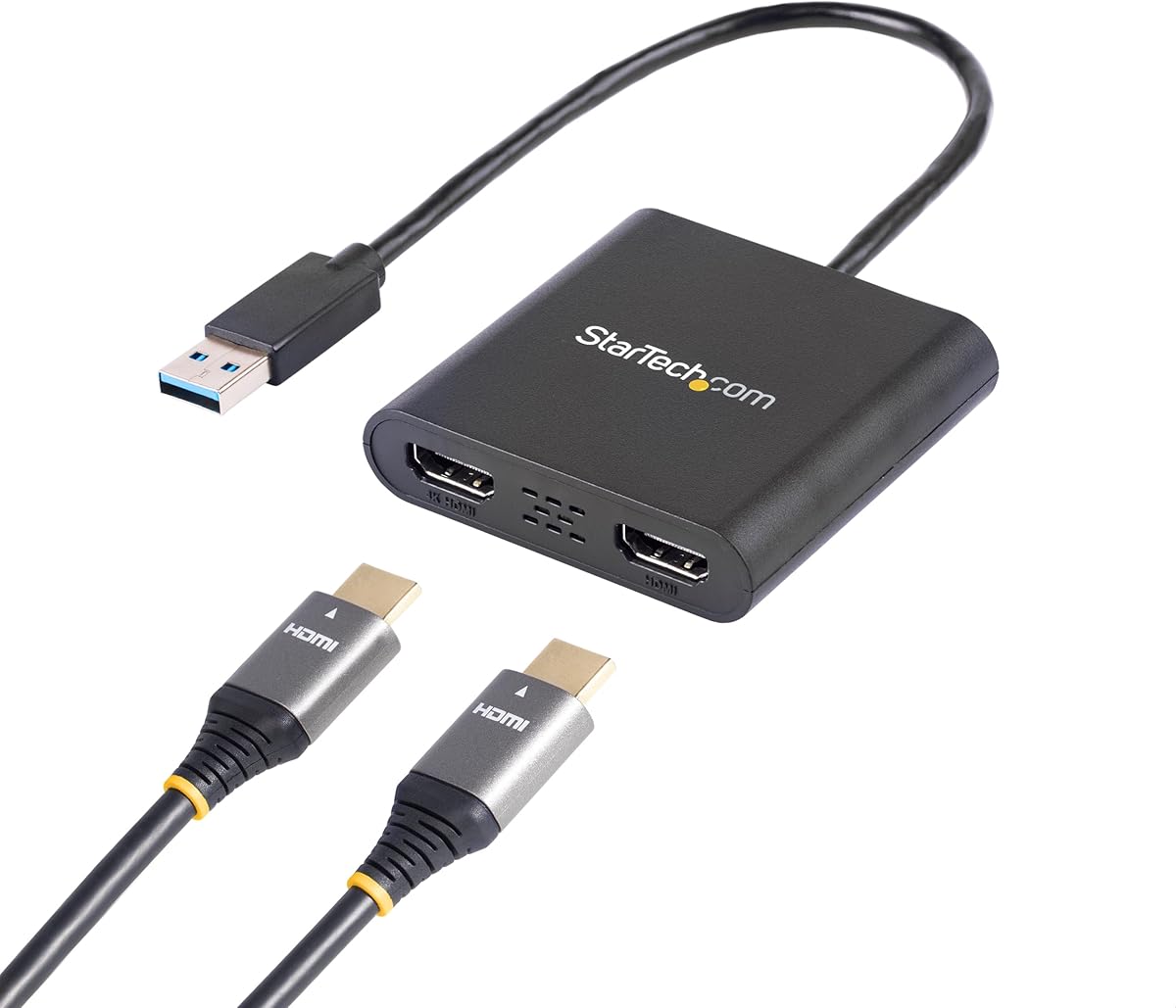
The StarTech USB-A 3.0 to Dual HDMI Adapter is designed for Windows users who need to connect two external monitors to their laptop or desktop. With a 4.5 rating, it is known for reliable performance and professional-grade construction.
We may earn a commission when you buy through this link, at no additional cost to you.
It supports 4K resolution at 30Hz on one output and 1080p at 60Hz on the other, offering a good balance of performance. The adapter is built for IT professionals, ensuring durability and stability in demanding environments.
However, it is limited to Windows systems and does not support macOS. This restricts its use for users in mixed operating system environments.
This adapter is best for Windows workstations where dual monitor support is essential for productivity. If you need to extend your desktop across two screens, it is a dependable choice.
Allows connection of two HDMI monitors for expanded workspace.
Designed for durability and reliability in professional settings.
We may earn a commission when you buy through this link, at no additional cost to you.
This StarTech.com USB-A to HDMI Adapter is DisplayLink certified, ensuring compatibility and reliable performance across supported systems. With a 4.4 rating, it is appreciated for its ease of use and stable video output.
We may earn a commission when you buy through this link, at no additional cost to you.
It supports 1080p resolution and features automatic driver installation on Windows and Chrome OS, simplifying the setup process. The compact design makes it easy to carry and store when not in use.
However, the price is higher than many competitors, reflecting its certified status. It is also focused on Windows and Chrome OS compatibility, which may limit its use on other platforms.
If you value certified reliability and automatic setup, this adapter is a strong choice. It is best for users who need a dependable solution for adding displays to laptops.
Ensures compatibility and reliability through official DisplayLink certification.
Simplifies installation with automatic driver setup on supported systems.
We may earn a commission when you buy through this link, at no additional cost to you.
The Kinhaly USB C to HDMI for TV adapter is designed for users with USB-C devices like iPhone 15/16, iPad, and MacBook. With a 4.2 rating, it is praised for its ability to deliver 4K video at 60Hz and support pass-through charging.
We may earn a commission when you buy through this link, at no additional cost to you.
It features a plug and play setup, eliminating the need for driver installation. The charging port ensures you can use your device while connected to a larger display, making it convenient for extended use.
However, it does not work with apps that have HDMI copyright protection, such as Netflix. Additionally, it requires devices to support USB-C DP Alt Mode, which may limit compatibility with some devices.
This adapter is ideal for iPhone and iPad users who want to stream content to TVs or projectors. If you need high-quality video output and charging support, it is a solid option.
Delivers 4K at 60Hz for clear and vibrant visuals on large screens.
Allows you to charge your device while connected to the adapter.
We may earn a commission when you buy through this link, at no additional cost to you.
This USB 3.0 to HDMI Adapter delivers 1080P resolution at 60Hz for smooth video playback and presentations. With a 4.3 rating, it is appreciated for its reliable performance and support for both Windows and macOS.
We may earn a commission when you buy through this link, at no additional cost to you.
It includes 3D display support, adding versatility for compatible content. The seamless resolution transform ensures your display appears as expected without distortion or lag.
However, it is not supported for Windows 8/8.1, Vista, Android, Linux, or macOS versions lower than 10.15. Driver installation is also required before initial use, which can be a minor step.
This adapter is best for users who need smooth video playback and multitasking capabilities. If you have a compatible system and value 60Hz performance, it is a strong choice.
Delivers 1080P at 60Hz for lag-free video and animations.
Compatible with both Windows and macOS for versatile use.
We may earn a commission when you buy through this link, at no additional cost to you.
The BENFEI USB C to HDMI Adapter is a compact and affordable solution for connecting USB-C devices to HDMI displays. With a 4.4 rating, it is praised for its performance and build quality.
We may earn a commission when you buy through this link, at no additional cost to you.
It supports 4K at 60Hz and is compatible with Thunderbolt 3/4/5 devices, including iPhones and MacBooks. The aluminum design ensures durability and efficient heat dissipation during use.
However, it requires USB C DP Alt Mode on the device, which may limit compatibility with some laptops. Additionally, it does not support audio output, which may require separate audio connections.
This adapter is ideal for users who need high-quality video output at a reasonable price. If you have a Thunderbolt or USB C device with DP Alt Mode, it is a great choice.
Lightweight and portable, easy to carry for business presentations.
Delivers 4K at 60Hz for sharp and clear video output.
We may earn a commission when you buy through this link, at no additional cost to you.
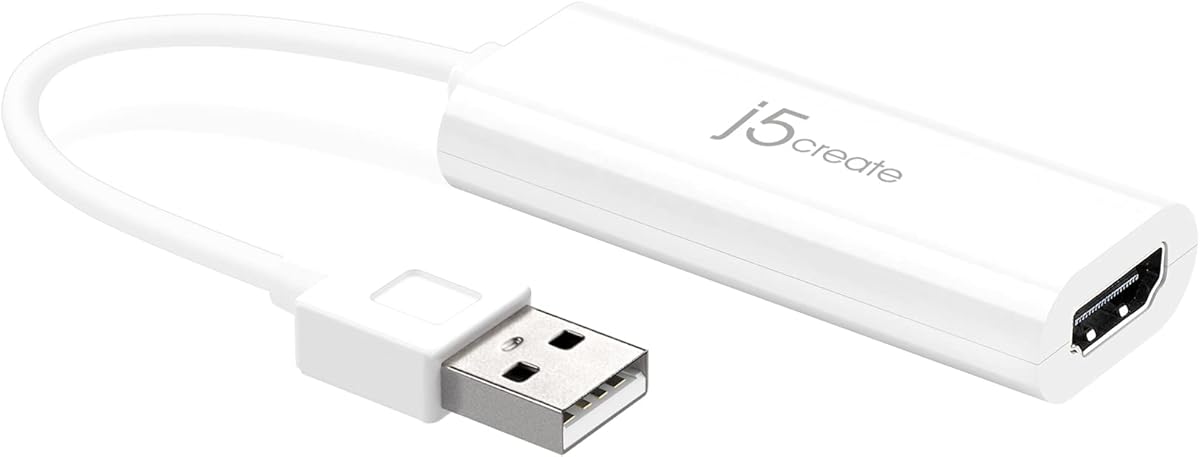
The j5create USB to HDMI Display Adapter is designed for professionals who need to add an external monitor without installing internal hardware. With a 4.5 rating, it is appreciated for its reliability and ease of use.
We may earn a commission when you buy through this link, at no additional cost to you.
It supports hot swappable connections, allowing you to add or remove monitors without rebooting your system. This feature enhances productivity in environments where flexibility is key.
However, driver installation is required, and some users may need to reboot during setup. While it is a robust solution, it may not be suitable for those who prefer plug-and-play simplicity.
This adapter is best for professionals in fields like stock markets, graphic design, or healthcare who need extended display capabilities. If you prioritize multitasking and flexibility, it is a solid investment.
Allows adding or removing monitors without rebooting your system.
Provides an easy way to add displays without opening your computer.
We may earn a commission when you buy through this link, at no additional cost to you.
Selecting the right Flash Drive to HDMI Adapter requires considering several factors to ensure compatibility and performance. This guide outlines key aspects to evaluate before making a purchase.
Ensure the adapter supports the resolution of your external display. Most adapters offer 1080P at 60Hz, while some support 4K. Higher resolutions require better hardware performance.
Look for adapters that match your display's capabilities for optimal visuals.
Check if the adapter is compatible with your operating system. Some adapters support both Windows and macOS, while others are limited to one platform. Verify driver requirements before purchasing.
Choose an adapter that works seamlessly with your current setup to avoid compatibility issues.
Identify the port type on your device. USB 3.0 adapters offer better performance than USB 2.0. USB-C adapters are ideal for newer devices with USB-C ports.
Select an adapter with the correct input to ensure stable and fast data transfer.
Some adapters require driver installation, while others are plug and play. Driver-based adapters may offer better performance but add setup steps. Consider your technical comfort level.
If you prefer simplicity, choose a plug-and-play adapter to avoid installation hurdles.
For frequent travelers, a compact and durable design is essential. Look for adapters with aluminum casings or braided cables for longevity. Weight and size matter for on-the-go use.
Choose a well-built adapter that withstands regular handling and transport.
If you need multiple external displays, verify the adapter supports daisy-chaining or multiple outputs. Some adapters allow connecting up to 6 monitors with additional hardware.
Prioritize adapters with multi-monitor capabilities if you require extended workspace setups.
Ensure the adapter supports audio transmission through HDMI for seamless playback. Some adapters may have audio limitations, requiring separate audio connections.
Look for adapters that deliver synchronized audio and video for an immersive experience.
Check the warranty period and customer support availability. Longer warranties provide peace of mind against defects. Reliable support helps resolve setup issues quickly.
Select an adapter from a reputable brand with strong after-sales support.
To use your adapter, connect it to your device's USB port and the HDMI cable to your display. Follow any driver installation instructions provided by the manufacturer. Restart your system if prompted.
Adjust your display settings in your operating system to extend or mirror your screen. Most adapters support these modes automatically. Use keyboard shortcuts or system preferences to switch between options.
To care for your adapter, avoid bending the cable excessively and store it in a protective case when not in use. Keep it away from moisture and extreme temperatures to maintain performance and longevity.
Some adapters require driver installation for full functionality, while others are plug and play. Check the product details to confirm driver requirements for your operating system. Drivers are often downloaded automatically during setup.
Yes, but performance may be limited. USB 2.0 ports typically support lower resolutions and refresh rates. For optimal performance, use a USB 3.0 or higher port whenever possible.
Many adapters support macOS, but compatibility varies by model. Verify that the adapter explicitly lists macOS support in its specifications. Some macOS devices may require additional driver installation.
Some adapters support multi-monitor setups through daisy-chaining or multiple outputs. Check the product specifications for the maximum number of supported displays. Additional hardware may be required for extended setups.
Most adapters support audio through HDMI, but some may have limitations. Verify audio capabilities in the product description. If audio is not supported, you may need separate audio connections.
These adapters are designed for computers and may not work with gaming consoles. Consoles typically require specific HDMI ports. Check compatibility with your device before purchasing.
This guide has reviewed ten top Flash Drive to HDMI Adapter options, highlighting their strengths and limitations. From budget-friendly choices to professional-grade solutions, there is an adapter for every need.
When selecting an adapter, prioritize compatibility, resolution support, and ease of use. Consider your specific use case, whether for presentations, extended workspaces, or home entertainment.
Remember that prices and availability may change over time. Check current listings and reviews before making your final decision to ensure you get the best value for your investment.