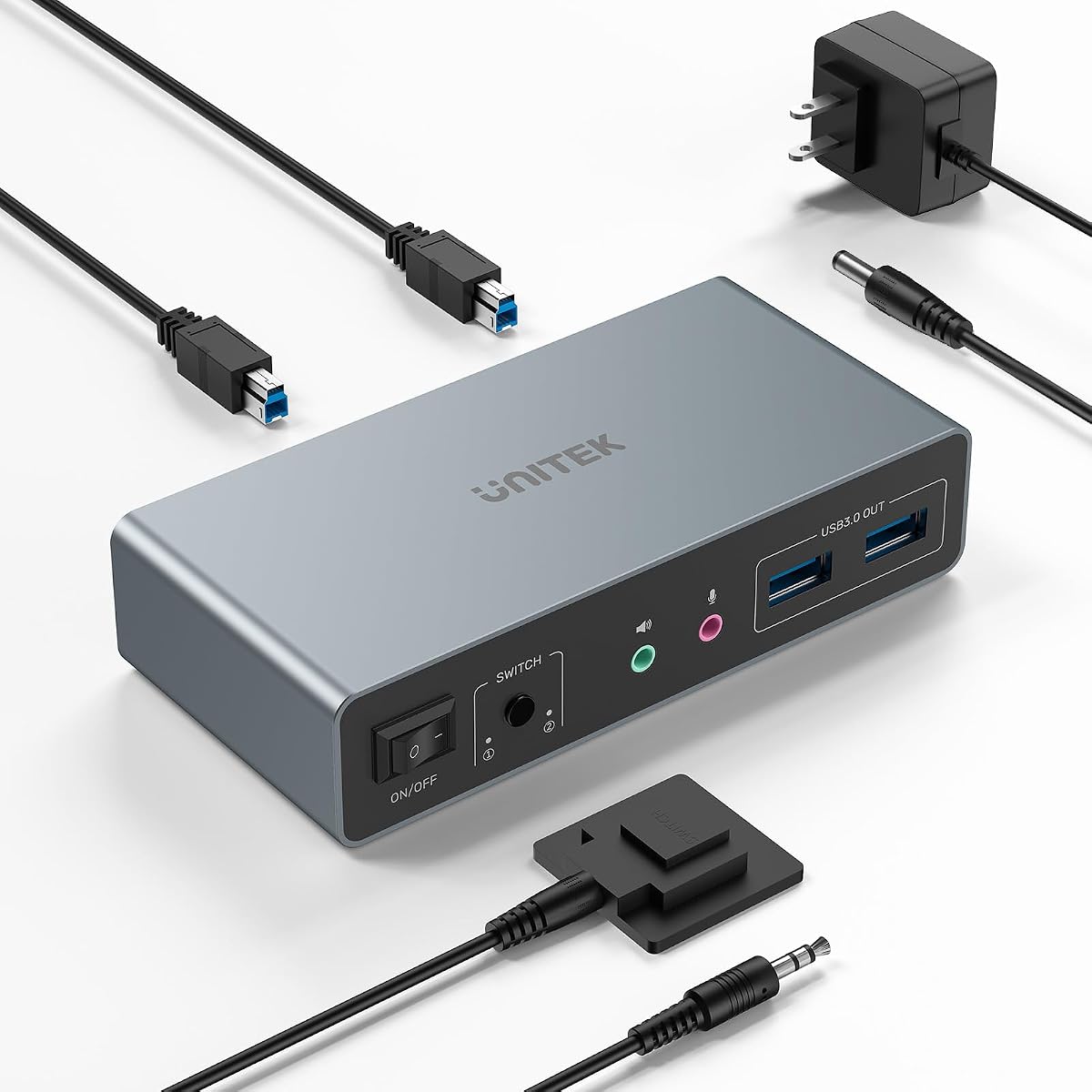
Unitek KVM Switch 2 Monitors 2 Computers HDMI Displayport Dual Monitor 2 PC
4.5Editor score
Hybrid HDMI and DisplayPort inputs
Includes dedicated power adapter
Supports 4K@60Hz resolution
This guide compares the best KVM switches for 2 computers and 2 monitors, evaluating video quality, USB sharing, switching methods, and compatibility for
Managing multiple computers efficiently requires a reliable solution that streamlines your workspace. A high-quality KVM switch for 2 computers and 2 monitors allows you to control dual systems with one keyboard and mouse, reducing cable clutter and boosting productivity across your desk setup.
We evaluated ten top-rated models based on video resolution support, USB port speed, switching mechanisms, and build quality. Our analysis focuses on how each unit handles extended displays, dual graphics requirements, and peripheral sharing to help you find the perfect match for your technical needs.
Each pick highlights specific strengths like 8K support, DisplayPort compatibility, or budget-friendly pricing. Note that availability and specifications may change over time, so verify current details before purchasing. This guide provides the clarity you need to upgrade your multi-computer workflow effectively.
4.5Editor score

4.2Editor score

4.7Editor score
The following table provides a side-by-side overview of the ten models featured in this guide. Use this comparison to quickly assess resolution capabilities, port configurations, and switching options to determine which unit aligns best with your hardware requirements and performance expectations.


This model stands out as the top choice for users needing extreme resolution support. It delivers 8K@60Hz performance, making it ideal for professional video editing or high-fidelity gaming setups. The inclusion of a dedicated power adapter ensures that connected USB devices remain stable during operation.
We may earn a commission when you buy through this link, at no additional cost to you.
The switch supports both extended and copy modes, providing flexibility for multitasking or presentations. Four USB 3.0 ports allow you to share peripherals like printers and webcams seamlessly between two computers. This eliminates the need for duplicate hardware across workstations.
One trade-off is the requirement for dual HDMI outputs on your computers. If your system lacks these ports, you may need an additional graphics card. Additionally, hotkey switching is not supported, meaning you must rely on physical buttons or the remote controller for toggling.
Buy this if you need maximum visual clarity and reliable peripheral sharing. It is best suited for desktops with dual graphics cards or multiple HDMI ports. The robust build and comprehensive feature set make it a solid investment for long-term professional use.
Enjoy crystal clear 8K content for professional workflows and immersive media experiences.
Connect printers and drives to a single hub accessible by both machines.
We may earn a commission when you buy through this link, at no additional cost to you.
This unit offers similar capabilities to the first pick with a focus on performance. It supports 8K@60Hz and 4K@120Hz refresh rates, catering to high-end monitors. The package includes a 12V power adapter to maintain stability for external drives or peripherals.
We may earn a commission when you buy through this link, at no additional cost to you.
Users can control two computers using one keyboard and mouse, simplifying the desk layout. The four USB 3.0 ports enable fast data transfer for connected accessories. Switching is done via panel buttons or the included remote controller for convenience.
Note that passive adapters do not work with this switch; active adapters are required for video transmission. This ensures signal integrity but may increase setup complexity for some users. Hotkey switching is also unsupported on this model.
Choose this for professional environments needing high refresh rates. It works well with Windows, Mac, and Linux systems. Ensure your computers have dual HDMI outputs before purchase to avoid compatibility issues with the dual monitor function.
Smooth visuals at 120Hz make this suitable for gaming and motion-heavy tasks.
Active adapters are recommended to ensure proper signal transmission through the switch.
We may earn a commission when you buy through this link, at no additional cost to you.
This switch is ideal for users with DisplayPort outputs. It supports 4K@144Hz, which is excellent for gaming and smooth motion graphics. The design allows sharing of monitors and USB devices across two computers efficiently.
We may earn a commission when you buy through this link, at no additional cost to you.
Two switching methods are available: a panel button and a remote controller. This flexibility helps organize cables and keep the desk tidy. The external power supply ensures that high-power USB devices like hard drives function correctly.
Each computer must be connected via two DP cables and one USB-A cable for full functionality. The cables are not included, so you will need to purchase them separately. Hotkey switching is not supported for this unit.
Select this if you prioritize high refresh rates and have DisplayPort-enabled hardware. It is compatible with Windows and Linux systems. Verify your computer has dual DP ports before buying to ensure proper installation and display mirroring.
144Hz support ensures fluid motion for gaming and creative video editing workflows.
Confirm you have the correct DisplayPort cables to connect the switch to your setup.
We may earn a commission when you buy through this link, at no additional cost to you.
Information for this model is currently unavailable in our database. Please check the product page directly for the most accurate and up-to-date details. We recommend verifying availability and specifications before proceeding with any purchase decision.
We may earn a commission when you buy through this link, at no additional cost to you.
Without specific data, we cannot evaluate its performance or features. It is best to choose a model with confirmed specifications to meet your needs. You may contact customer support for further assistance or alternatives.
Avoid purchasing products with missing technical details to ensure compatibility with your hardware. Reading current user reviews can also provide insight into real-world performance. Stay informed to make a confident buying choice.
Always check the latest product information before buying to ensure it meets your needs.
We may earn a commission when you buy through this link, at no additional cost to you.
This model features adaptive EDID to maintain display stability during switching. It supports 8K@60Hz visuals, ensuring sharp content quality. The plug-and-play design means no driver installation is needed for basic functionality.
We may earn a commission when you buy through this link, at no additional cost to you.
Three USB 3.0 ports provide sufficient connectivity for essential peripherals. The wired controller helps keep the setup clean by allowing you to place the main unit away from the desk. High-quality HDMI 2.1 cables are recommended for optimal performance.
The unit works with Windows, Mac, and Linux systems. It includes a power cable for stable operation. Hotkey switching is not supported, so physical or remote buttons are necessary for changing between computers.
Choose this for easy setup and reliable signal stability. It suits users who want minimal configuration. Ensure your cables meet the HDMI 2.1 standard to achieve the highest resolution capabilities advertised.
Automatic display parameter adjustment helps prevent freezes and screen distortion.
Using high-quality HDMI 2.1 cables is essential for 8K performance.
We may earn a commission when you buy through this link, at no additional cost to you.
This KVM uses EDID emulation to prevent window rearrangement during switching. It supports 4K@60Hz resolution, suitable for professional monitors. Three USB 3.0 ports allow sharing of peripherals between computers.
We may earn a commission when you buy through this link, at no additional cost to you.
The independent power input helps maintain stability for devices requiring more current. The design supports extended use without overheating. However, the 5V power adapter is not included in the package.
Switching is done via panel buttons or a remote controller. It works with Windows, macOS, and Linux systems. Note that active adapters may be needed for some setups. Hotkey switching is not supported.
Select this if you want to minimize display interruptions. It is a cost-effective choice for office or home use. Ensure you have the correct power supply before starting your setup for reliable operation.
EDID emulation helps keep your desktop layout consistent when switching inputs.
You will need to source a 5V adapter separately for stable operation.
We may earn a commission when you buy through this link, at no additional cost to you.
This Unitek switch supports both HDMI and DisplayPort inputs. This flexibility allows it to work with a wider range of hardware. It includes a power adapter to ensure stable operation for connected devices.
We may earn a commission when you buy through this link, at no additional cost to you.
Four USB 3.0 ports enable efficient sharing of hard drives and printers. The package includes necessary USB cables and a desktop controller. Audio ports allow headset connections for versatile usage.
Note that it is designed for desktop hosts only and may not work with laptops. Each host must have all necessary cables connected for proper functionality. This makes it a robust choice for fixed desktop environments.
Choose this if you have a mix of HDMI and DisplayPort monitors. It offers a high rating and comprehensive features. Verify your computer compatibility carefully before purchase to avoid connection issues with laptops.
Mix HDMI and DisplayPort monitors for greater flexibility in multi-monitor setups.
Ensure your setup is desktop-based to avoid compatibility issues with this model.
We may earn a commission when you buy through this link, at no additional cost to you.
This model focuses on DisplayPort connectivity with a compact form factor. The aluminum housing ensures excellent heat dissipation during use. It offers 4K@60Hz support for professional and gaming setups.
We may earn a commission when you buy through this link, at no additional cost to you.
The switch includes one USB-C and three USB-A ports for versatile peripheral connections. It is plug-and-play with no software needed. Switching is instant via front buttons or a wired remote.
Note that HDMI inputs are not supported. It is designed specifically for DisplayPort connections. Additionally, it may not be compatible with all laptop models. Check your hardware requirements carefully before buying.
Select this if you prioritize a small footprint and aluminum build. It is ideal for offices and gaming setups. Verify that your monitors use DisplayPort to avoid compatibility issues with the video inputs.
A small footprint and aluminum casing help save desk space and improve durability.
The mix of USB-C and USB-A ports supports modern and legacy peripherals equally.
We may earn a commission when you buy through this link, at no additional cost to you.
This model offers a budget-friendly solution for dual monitor setups. It supports 4K@60Hz resolution and four USB 3.0 ports for peripheral sharing. The included 12V power supply ensures stable performance.
We may earn a commission when you buy through this link, at no additional cost to you.
Smart EDID copy technology helps prevent window rearrangement during switching. It works with Windows, macOS, and Linux systems. Switching is handled via a front button or remote controller.
The design prioritizes value without compromising on essential features. It is perfect for home offices or small businesses. Note that hotkey switching is not supported for this unit.
Choose this if you need a reliable switch without a high price tag. It delivers solid performance for standard workloads. Verify your computer supports dual HDMI outputs before purchasing for best results.
Get essential features like 4K support and power supply at a competitive price.
EDID technology helps your computer remember settings for smoother transitions.
We may earn a commission when you buy through this link, at no additional cost to you.
This switch supports 8K@60Hz and 4K@120Hz for high-fidelity video. It includes a braided HDMI cable to ensure stable signal transmission. Four USB 3.0 ports enable efficient peripheral sharing across two computers.
We may earn a commission when you buy through this link, at no additional cost to you.
The unit uses a Genesys Logic chipset for consistent performance. It comes with a 5V/2A adapter to support high-power devices. Switching is handled via front buttons or a remote control.
Setup is simple with no drivers needed. It is compatible with major operating systems. The metal housing adds durability and helps with heat dissipation during extended use.
Choose this for a complete package that includes essential cables. It is a strong choice for HDMI-based setups. Verify that your monitors support 8K to fully utilize the video capabilities.
The included braided cable helps ensure stable signal without extra cost.
A reliable chipset ensures consistent performance across high-resolution displays.
We may earn a commission when you buy through this link, at no additional cost to you.
Selecting the right KVM switch requires understanding your hardware and usage needs. This guide outlines key factors to consider for a seamless and efficient setup.
Check that the switch supports the maximum resolution your monitors can display. Models supporting 8K@60Hz or 4K@144Hz ensure sharp visuals for professional work or gaming.
Always verify the HDMI version to match your graphics card's capabilities.
USB 3.0 ports provide faster data transfer than USB 2.0 for connected drives or peripherals. Look for at least three to four ports for sharing keyboards, mice, and storage.
Higher speed ensures no lag when transferring files between computers.
Most switches offer panel buttons or wired remote controllers. Choose based on your desk layout and how accessible you want the controls to be.
Note that keyboard hotkey switching is often unsupported in these specific models.
External power adapters are essential for high-power USB devices like hard drives. A dedicated power source prevents flickering or disconnection issues.
Always check if an adapter is included or must be purchased separately.
Ensure the switch works with your operating systems like Windows, Mac, or Linux. Also confirm your computers have dual video outputs for dual monitor support.
Check for compatibility with your existing cables and adapters before buying.
EDID emulation or copy helps retain display settings when switching to avoid rearranging windows. This feature improves workflow continuity and reduces setup time.
Look for units with smart EDID features to simplify daily use.
Decide between HDMI and DisplayPort inputs based on your monitor connections. Some switches support both for greater flexibility in mixed setups.
Ensure cables are included or available to connect your hardware properly.
Metal housings and heat dissipation designs ensure stability during long sessions. Durability affects how well the device performs under frequent switching.
Choose a unit with good thermal properties to avoid overheating.
Start by connecting your two computers to the switch using video cables and a USB cable. Ensure each computer has dual video outputs if using two monitors. Follow the included instructions to set up your cables correctly.
Once connected, plug in the power adapter if your model requires external power. This ensures USB devices like drives get enough current. Test the switch buttons to confirm you can toggle between systems without issues.
To care for the device, keep it in a well-ventilated area to avoid overheating. Avoid bending cables excessively during setup. Check the manufacturer warranty for support in case of issues.
Most switches require computers with dual HDMI outputs for two monitors. If your laptop has only one video port, you will need an additional graphics card or external docking station to support dual display output for the KVM switch.
External adapters provide enough current for high-power USB devices like hard drives. Without them, USB devices may disconnect or malfunction when switching computers. This ensures stable operation across all connected peripherals.
No, most models in this guide do not support keyboard hotkey switching. You must use the included wired remote or buttons on the switch to toggle between computers. This design prioritizes stable signal transmission.
Many switches support up to 8K@60Hz or 4K@120Hz. For 8K, ensure you use HDMI 2.1 cables. Lower resolutions like 1080p or 4K are widely supported on most models for standard workstations.
Yes, the primary purpose of a KVM switch is to share a single keyboard and mouse across two computers. This reduces clutter and allows you to focus on one setup without swapping cables.
Yes, 8K@60Hz requires high-quality HDMI 2.1 cables. Standard cables may limit your resolution to 4K@60Hz. Check product descriptions to see if cables are included or if you need to purchase them separately.
We reviewed ten top KVM switches suitable for dual computer setups. From 8K HDMI options to compact DisplayPort units, each model offers unique benefits for different hardware needs and budgets.
Focus on resolution support, USB speed, and power requirements before deciding. Ensure your computers have dual video outputs to fully utilize two monitors. EDID technology can also streamline your workflow significantly.
Prices and availability may change, so always check current listings before purchasing. Choose the model that matches your specific needs for performance and reliability. A well-chosen KVM switch simplifies multi-computer management effectively.