
HDMI KVM Switch 3 Monitors 2 Computers 4K@60Hz
4.5Editor score
4 USB 3.0 ports for peripherals
Panel button and wired controller
4K@60Hz resolution support
Compare the top 10 KVM switches for triple monitors supporting HDMI and DisplayPort 4K 8K with USB sharing for multi computer desktop setups.
Finding a reliable KVM switch for triple monitors is essential for professionals managing multiple systems. These devices allow seamless switching between computers while sharing keyboards, mice, and displays efficiently.
This guide evaluates ten top-rated models based on resolution support, port count, and build quality. We compare HDMI and DisplayPort options to help you choose the right hardware for your workspace needs.
Each product entry highlights key specifications, pros, and cons to simplify your decision. Prices fluctuate frequently, so verify current listings before purchasing to ensure you get the best value available today.
4.5Editor score

4.9Editor score

4.2Editor score
The following comparison table lists key features for all ten models. Check resolution limits, port types, and included accessories to find the perfect match for your triple monitor setup.




The AV Access KVM Switch stands out as the top choice for users needing docking station capabilities alongside triple monitor support. It achieves an impressive rating due to its robust feature set including USB-C delivery and network sharing.
We may earn a commission when you buy through this link, at no additional cost to you.
This model allows you to connect a USB-C laptop and a desktop PC simultaneously while sharing three displays and multiple USB peripherals. The ability to keep network tasks running on the unselected computer is a significant advantage for remote work or downloads.
Trade-offs include the requirement for Windows laptops to support video output via USB-C and limited extended display support for MacBooks. These constraints are acceptable for most professional setups where performance and convenience are prioritized over pure laptop compatibility.
Anyone seeking a comprehensive solution to replace a separate dock and switch will find this device invaluable. It streamlines the dual-computer workflow significantly while maintaining high resolution and refresh rate performance for demanding tasks.
Connect your laptop with a single USB-C cable to handle video, data, and charging at once without needing extra adapters.
Keep downloads and sync tasks running on both systems even when switching control by using the shared Ethernet port.
We may earn a commission when you buy through this link, at no additional cost to you.
This HDMI KVM switch offers an affordable entry into triple monitor setups without sacrificing essential functionality. It supports 4K resolution and provides ample USB connectivity for standard office peripherals efficiently.
We may earn a commission when you buy through this link, at no additional cost to you.
Users can enjoy crystal clear visuals up to 4K@60Hz and share keyboards mice and printers across two computers using the provided USB 3.0 ports. The inclusion of both panel buttons and a wired remote makes switching flexible for different desk layouts.
While it lacks keyboard hotkey toggling which some power users prefer the physical controls are reliable and easy to access. The requirement for three HDMI outputs per computer is standard for this configuration but requires compatible graphics cards.
Ideal for home office users or students needing to switch between work and personal PCs on a budget. It delivers stable performance and clear images at a fraction of the cost of premium docking solutions.
Place the wired remote controller outside your immediate work area to keep the desktop clean while maintaining easy access.
Connect multiple USB devices like webcams and printers simultaneously thanks to four dedicated 3.0 ports with fast data speeds.
We may earn a commission when you buy through this link, at no additional cost to you.
The AV Access 8K KVM Docking Station delivers premium performance suitable for gaming and high-end creative workflows. It combines switch functionality with extensive docking capabilities to reduce desk clutter significantly.
We may earn a commission when you buy through this link, at no additional cost to you.
It supports ultra high refresh rates like 480Hz for smooth gaming visuals and offers fast 10Gbps USB data transfer for large files. The built-in SD card reader and audio jack eliminate the need for separate dongles and hubs.
Trade-offs include the higher cost compared to basic switches and specific display limitations for MacBooks regarding extended mode. These factors are generally acceptable for professional users who need the extra connectivity and performance headroom.
This device is perfect for content creators or gamers who require maximum resolution and refresh rates alongside multi-computer access. It provides a complete all-in-one solution that simplifies complex dual system setups efficiently.
Move large video files quickly between systems using the 10Gbps USB-C and USB-A ports designed for SSDs and storage.
Access SD cards directly through the built-in reader without needing a separate card reader adapter for your peripherals.
We may earn a commission when you buy through this link, at no additional cost to you.
UGREEN offers a solid option for users who need to mix HDMI and DisplayPort monitors in a triple setup. The aluminum construction provides durability while supporting high-end graphics features like G-Sync and HDR.
We may earn a commission when you buy through this link, at no additional cost to you.
It handles up to 4K@240Hz resolution for gaming and supports variable refresh rate technologies to prevent screen tearing. The package includes multiple cables for DisplayPort and HDMI making setup straightforward without extra purchases.
The lack of EDID emulation can sometimes cause issues with display recognition on certain systems requiring manual adjustments. However the included desktop controller and robust cable support make it a convenient choice for many users.
This KVM is suitable for enthusiasts who want to mix different monitor technologies without compromising on refresh rates. It balances performance and compatibility well for mixed environment setups with specific display needs.
Use both HDMI and DisplayPort inputs to match different monitor types while maintaining high performance across all screens.
Leverage FreeSync and G-Sync features to ensure smooth visuals during fast-paced gaming or high frame rate video playback.
We may earn a commission when you buy through this link, at no additional cost to you.
This model allows four computers to share three monitors which is rare and useful for server rooms or multi-user workspaces. It maintains high resolution and refresh rate capabilities while managing multiple inputs efficiently.
We may earn a commission when you buy through this link, at no additional cost to you.
It supports up to 4K@144Hz via DisplayPort ensuring smooth visuals for design work or gaming across four different systems. The inclusion of four USB 3.0 cables simplifies initial setup since you get everything needed right out of the box.
Note that discrete graphics cards may be required to drive all monitors simultaneously on some PCs which can add complexity. But for environments needing maximum computer connectivity this switch offers unmatched flexibility and utility.
Best suited for IT professionals or users needing to access multiple systems on a single triple monitor desk setup. It provides a robust solution for multi-computer environments where switching speed and signal quality matter.
Connect up to four different computers to the same three monitors and peripherals to manage diverse systems effortlessly.
Get included USB cables for all inputs so you can start using the switch immediately without hunting for extra adapters.
We may earn a commission when you buy through this link, at no additional cost to you.
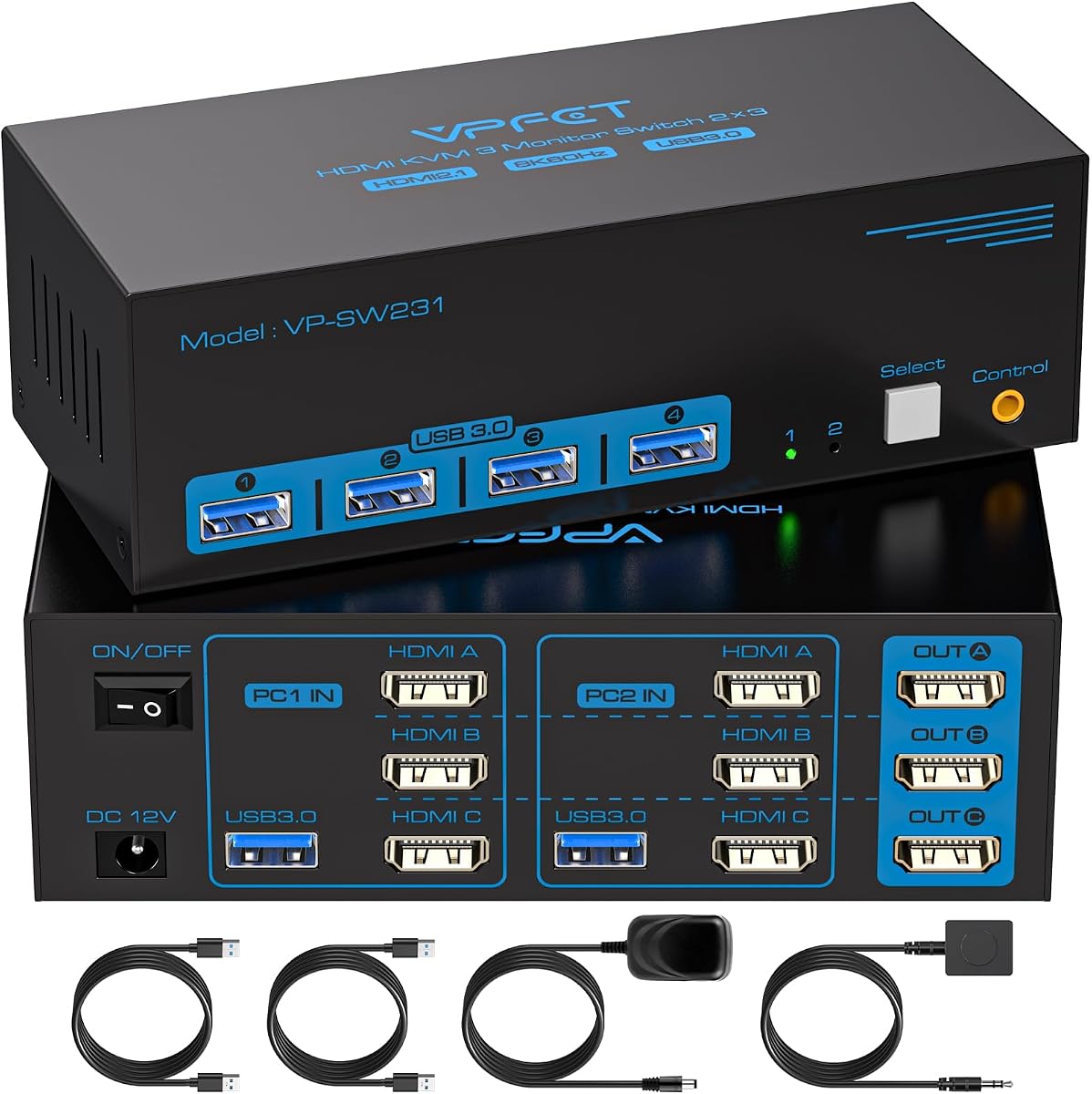
Designed to support HDMI 2.1 and DisplayPort 1.4 this switch prepares users for future display upgrades without replacing hardware. It ensures your triple monitor setup is ready for higher resolutions and refresh rates as technology advances.
We may earn a commission when you buy through this link, at no additional cost to you.
The independent power switch allows you to restart the unit to re-recognize signals without unplugging cables manually. This feature is particularly helpful when switching devices frequently or troubleshooting signal issues in complex setups.
To achieve maximum 8K resolution cable lengths must stay under 1.5 meters which may require planning for desk length. Despite this requirement the flexibility and high bandwidth make it a strong candidate for future-proof workstations.
Ideal for users planning to upgrade monitors or graphics cards soon. It provides the bandwidth and interface support needed to keep your setup current for years of demanding use.
Use the separate power switch to restart the KVM quickly if signal issues occur without disconnecting power cables manually.
Benefit from HDMI 2.1 and DP 1.4 interfaces that support next-generation monitor technologies and higher bandwidths.
We may earn a commission when you buy through this link, at no additional cost to you.
This switch offers solid 4K@120Hz support via HDMI at a competitive price making it great for gaming or media use. It includes a wired controller for convenient switching and supports both extended and copy modes effectively.
We may earn a commission when you buy through this link, at no additional cost to you.
Users can share USB devices easily with four dedicated ports that support fast data transfer speeds up to 5Gbps. The included adapter and controller mean you have everything needed to set up quickly without extra costs.
The lack of DisplayPort support limits compatibility with some monitors but HDMI remains widespread and easy to manage. Build quality is functional but not premium which is expected for this budget-friendly price point.
Perfect for gamers or media users who want smooth visuals without breaking the bank. It delivers reliable performance and essential features for a standard triple monitor home setup.
Enjoy fluid motion at 4K@120Hz via HDMI for gaming or video editing without needing a DisplayPort interface.
Get a wired controller and power adapter included so you can switch and power the unit immediately upon arrival.
We may earn a commission when you buy through this link, at no additional cost to you.
Designed specifically to share three monitors across three computers this model fills a niche gap for users managing multiple systems. It provides high refresh rates and solid USB support for daily use effectively.
We may earn a commission when you buy through this link, at no additional cost to you.
The included USB cables make initial setup easier and the wired remote allows you to switch systems from a convenient location. It handles extended and copy modes well for different workflow needs across three PC inputs.
Note that the included USB cables are relatively short which may require extensions for longer desks. Despite this minor inconvenience the value of supporting three inputs at this price point is significant.
Great for users needing to manage work personal and development machines on one desk setup. It offers a balanced mix of performance and flexibility for multi-system environments.
Connect three different computers to share one set of peripherals and displays efficiently without needing extra hardware.
Start using the switch immediately with included USB cables designed for quick connection to all three input computers.
We may earn a commission when you buy through this link, at no additional cost to you.
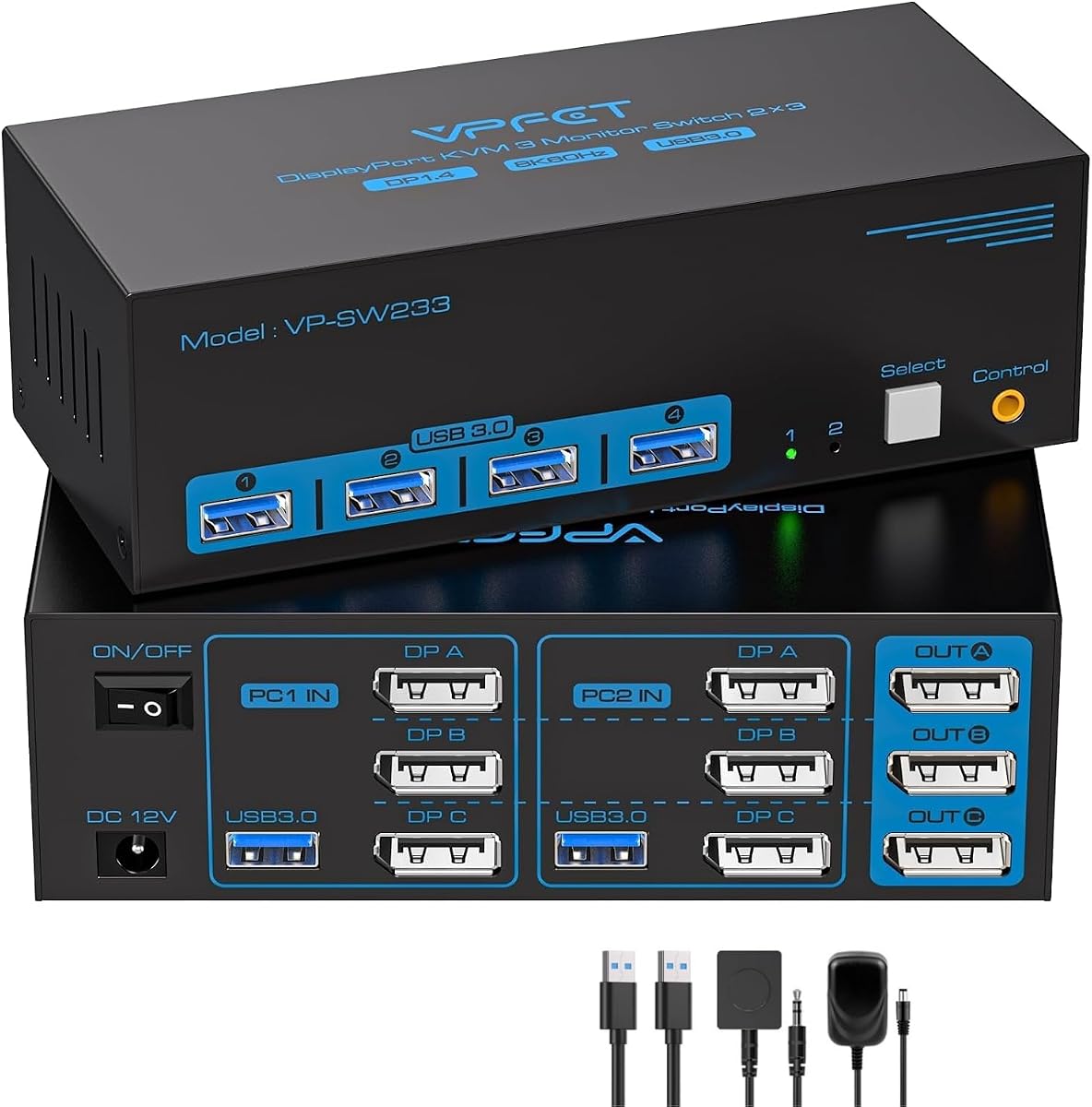
This KVM focuses on stable DisplayPort connectivity making it ideal for users needing high refresh rates for professional graphics work. It ensures sharp details and fluid motion for video editing or design applications.
We may earn a commission when you buy through this link, at no additional cost to you.
The switch supports 4K@144Hz resolution via DisplayPort allowing for smooth visuals during intensive tasks. Its design prioritizes reliability so you can manage multiple displays without signal dropouts or flickering issues.
You will need three DisplayPort outputs per computer which can be restrictive if your GPU does not support enough ports. But for workstation users this stability and speed are worth the extra hardware requirement.
Best for graphic designers or video editors needing precise and consistent display performance. It delivers the bandwidth and signal quality needed for demanding professional workflows.
Enjoy smooth motion at 4K@144Hz for design or video work without signal drops or flickering during switching.
Benefit from reliable DisplayPort transmission designed to maintain consistent visuals across all monitors in your setup.
We may earn a commission when you buy through this link, at no additional cost to you.
This model stands out by including HDMI and DisplayPort cables plus USB cables in the box so you save on accessories. It supports high resolutions and offers a one-year warranty for added peace of mind.
We may earn a commission when you buy through this link, at no additional cost to you.
With both HDMI and DP inputs you can mix monitor types easily while getting fast USB data transfer speeds for your peripherals. The included remote and adapter make setup straightforward for most triple monitor users.
Be aware that cable lengths might be shorter than preferred for larger desks but this is common for value packages. The strong rating and warranty support make it a reliable choice for home and office setups.
Best for users who want a complete bundle without buying extra cables separately. It provides everything needed to get started quickly at a competitive price point.
Get HDMI and DP video cables included so you do not need to buy separate adapters for your monitors.
Enjoy a full one-year warranty service for support if you encounter any issues with the device.
We may earn a commission when you buy through this link, at no additional cost to you.
Selecting the right KVM switch for triple monitors requires evaluating resolution support, interface types, and peripheral needs. This section covers the essential factors to ensure your chosen device meets your daily workflow demands.
Check that the switch supports the maximum resolution and refresh rate your monitors require. Models offering 4K@60Hz or higher are ideal for detailed work while those with 144Hz support benefit gaming users.
Confirm that your cables and graphics cards also support these specs to avoid bottlenecks when using a triple monitor setup.
Determine whether your monitors use HDMI, DisplayPort, or a mix of both. Some switches support only HDMI while others combine HDMI and DisplayPort inputs for greater flexibility.
Choose a model that matches your existing hardware to avoid needing expensive active converters or adapters.
Ensure the switch supports at least two computer inputs if you plan to share devices between work and personal PCs. Some models offer three or even four inputs for advanced multi-user environments.
Select a switch with enough inputs to accommodate your current and future computing needs without requiring upgrades soon.
Count how many USB devices you need to share such as keyboards, mice, webcams, or printers. Look for models with at least four USB 3.0 ports to handle multiple peripherals without congestion.
USB 3.0 ports provide faster data transfer speeds which are useful for external storage devices and high-bandwidth peripherals.
Many triple monitor KVM switches require external power to drive multiple video signals and USB devices reliably. Verify that the included adapter meets your needs or if you need to purchase one separately.
A stable external power supply prevents device dropouts and ensures consistent performance during long switching cycles.
Confirm that the switch supports your operating system whether you use Windows, macOS, or Linux. Most models are driver-free and plug-and-play but specific features like display modes can vary by OS.
MacBooks have limitations regarding extended display support so check if mirroring is acceptable for your workflow.
Review the package contents to see if cables, controllers, and adapters are included. Bundles that come with HDMI and DisplayPort cables reduce extra costs and simplify initial setup.
A wired controller adds convenience for switching systems without reaching for the device on your desk.
Look for switches made with durable materials like aluminum to ensure longevity in daily use environments. A solid build protects internal components from heat and physical stress.
Warranty coverage ranges from one year to longer periods so check the manufacturer support policy before purchasing.
Connect your computers to the input ports using the appropriate video cables such as HDMI or DisplayPort. Ensure each device has the necessary number of output ports for your triple monitor configuration before plugging in the switch.
Use the wired controller or panel buttons to switch control between computers easily. If you face signal issues try restarting the switch using the power adapter or the dedicated power switch if available.
Keep the device in a well-ventilated area to prevent overheating during extended use. Regularly inspect cables for damage to ensure stable video and data transmission over time.
Most modern KVM switches support extended display modes allowing each monitor to show different content. However this depends on your computer's graphics settings and hardware capabilities so check your OS display settings after connecting.
Some models work with MacBooks but often only in mirrored mode rather than extended. Check the product details to confirm if your specific model supports extended displays on macOS systems.
Yes most triple monitor KVM switches require an external power adapter to ensure stable output for all three displays and USB devices. Always connect the included adapter for optimal performance.
Included cables vary by model with some bundling HDMI and DisplayPort cables while others provide only USB cables. Check the package list to see which cables you receive before purchasing.
You can switch using buttons on the KVM unit or via an included wired controller. Some models allow keyboard hotkeys but many rely on physical switches for reliability.
Yes you need a graphics card that supports three independent outputs simultaneously. Ensure your PC has enough HDMI or DisplayPort ports to connect to the KVM switch inputs.
Choosing the right KVM switch for triple monitors involves balancing resolution support, interface types, and peripheral needs. Models like the AV Access docking station offer advanced features while budget options provide essential switching functionality.
Prioritize features that match your workflow such as high refresh rates for gaming or docking capabilities for laptops. Ensure your computer hardware supports the chosen resolution and input types before purchasing.
Prices for these devices fluctuate frequently so verify current listings and included accessories before buying. Checking warranty terms and cable availability ensures a smooth setup experience without hidden costs.